
Integrations
Connect Hirevalu to Workable
Add a Hirevalu stage in Workable, activate the integration with an API key, and link a job so candidates are invited and results sync back automatically.
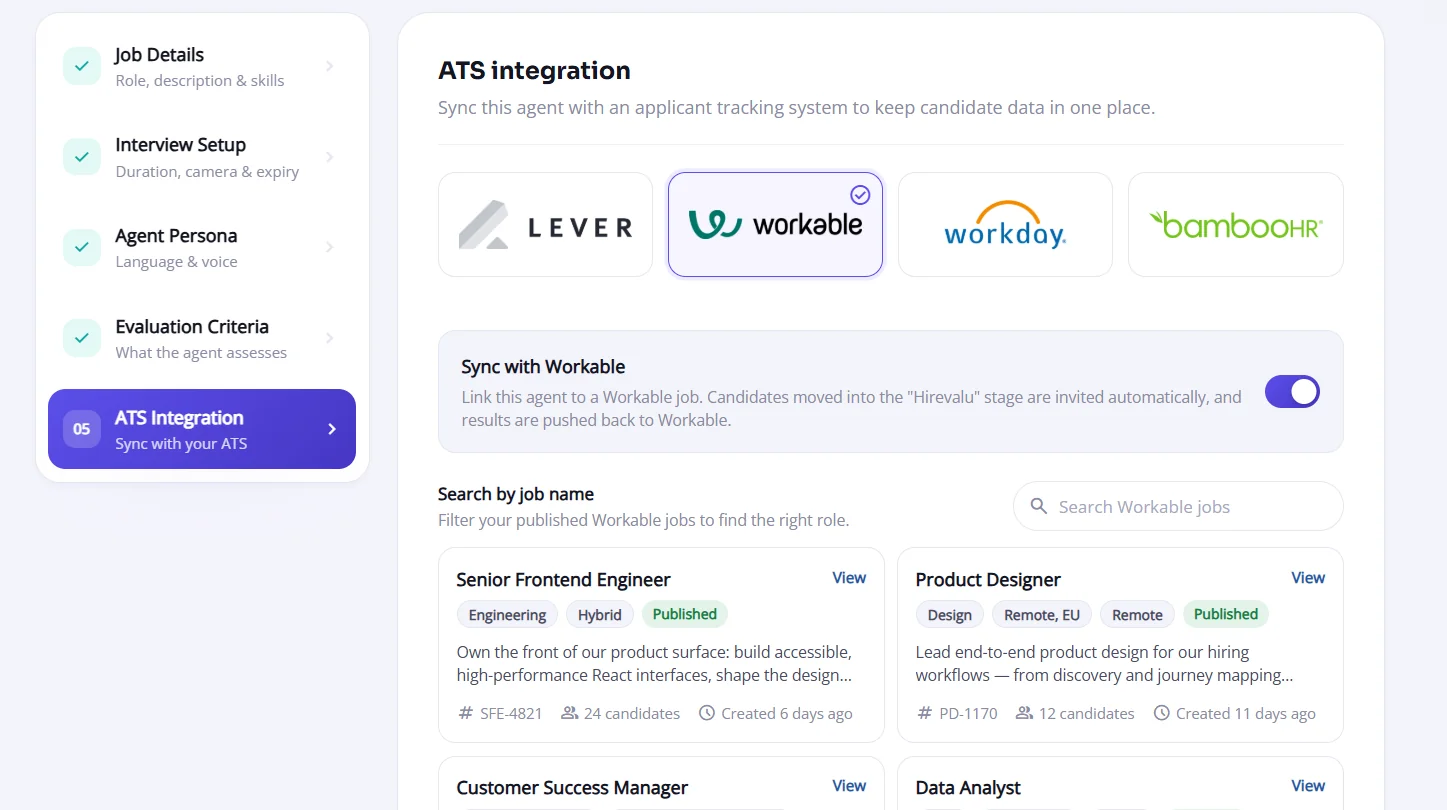
Connecting Workable turns a single pipeline move into a screening interview. Drag a candidate into the Hirevalu stage in Workable and they are invited to a Hirevalu interview automatically; once they finish, the evaluation is pushed back to Workable, so your team never has to leave the ATS.
Setup takes three steps in the integration guide, then one more on each agent you want to sync.
Before you start
- You need a Workable account with permission to edit the recruiting pipeline and create API access tokens — usually an admin.
- Have your Workable subdomain to hand: the
your-companypart ofyour-company.workable.com. - Only one ATS can be linked to an agent. Choosing Workable on an agent clears any Lever link on it, and vice versa.
1. Open the Workable integration guide
In Hirevalu, go to Account settings → Integrations → ATS. Expand the Workable card and click Connect Workable (or the Integration guide badge — both open the same guide).
The guide walks you through three steps, with a checklist on the left that ticks off as you go.
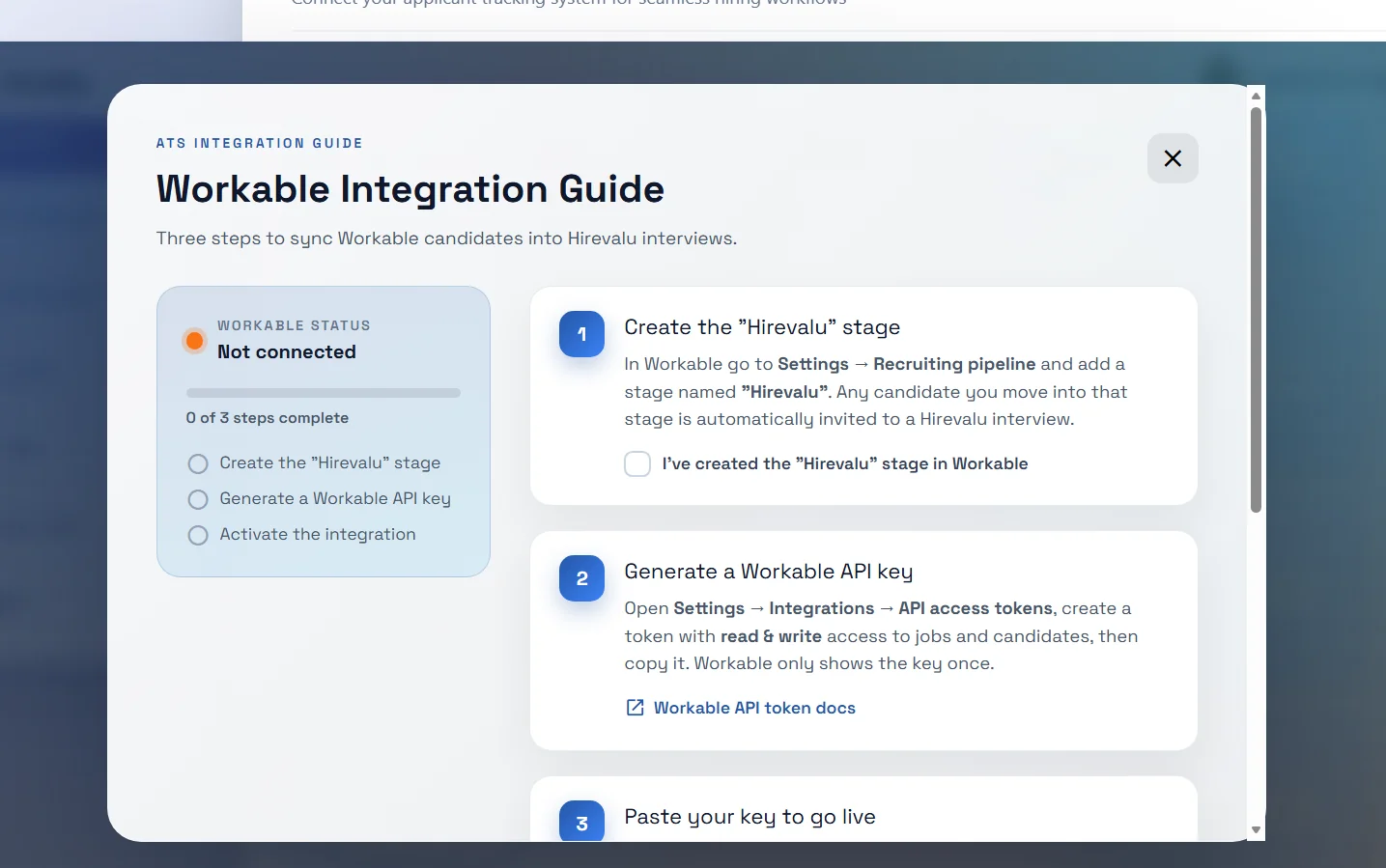
2. Create the “Hirevalu” stage in Workable
In Workable, go to Settings → Recruiting → Workflow. Under Pipelines, click Edit next to Recruiting pipeline, then add a stage named exactly Hirevalu and save.
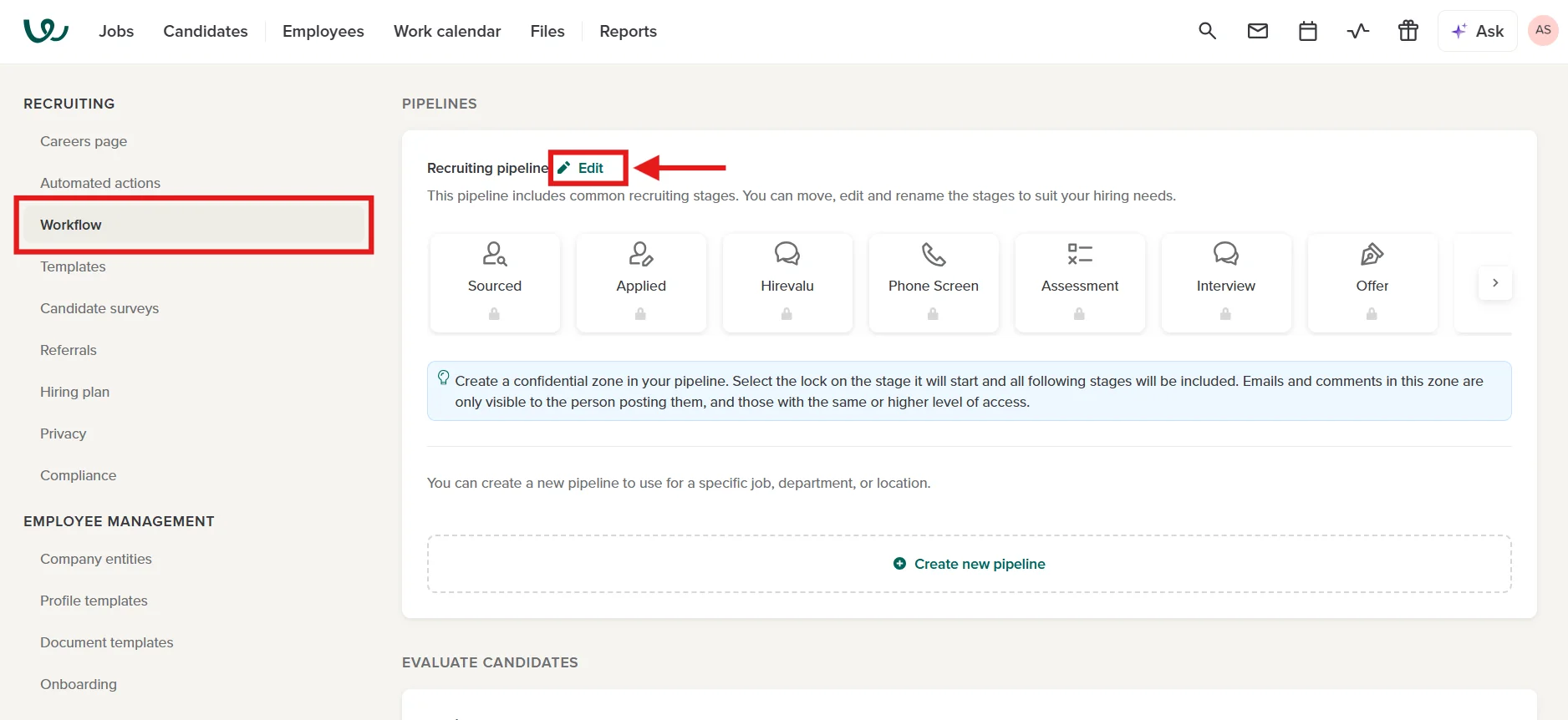
Placement matters: every candidate moved into this stage is invited to a Hirevalu interview, so put it where your process would otherwise hand off to a first-pass screen — right after Applied works well for most teams.
Back in the guide, tick I’ve created the “Hirevalu” stage in Workable.
If you use more than one pipeline (for example, per department or location), add the Hirevalu stage to each pipeline used by a job you plan to link.
3. Generate a Workable API key
In Workable, go to Settings → Integrations → Apps. Scroll to API access tokens and click Generate API token.
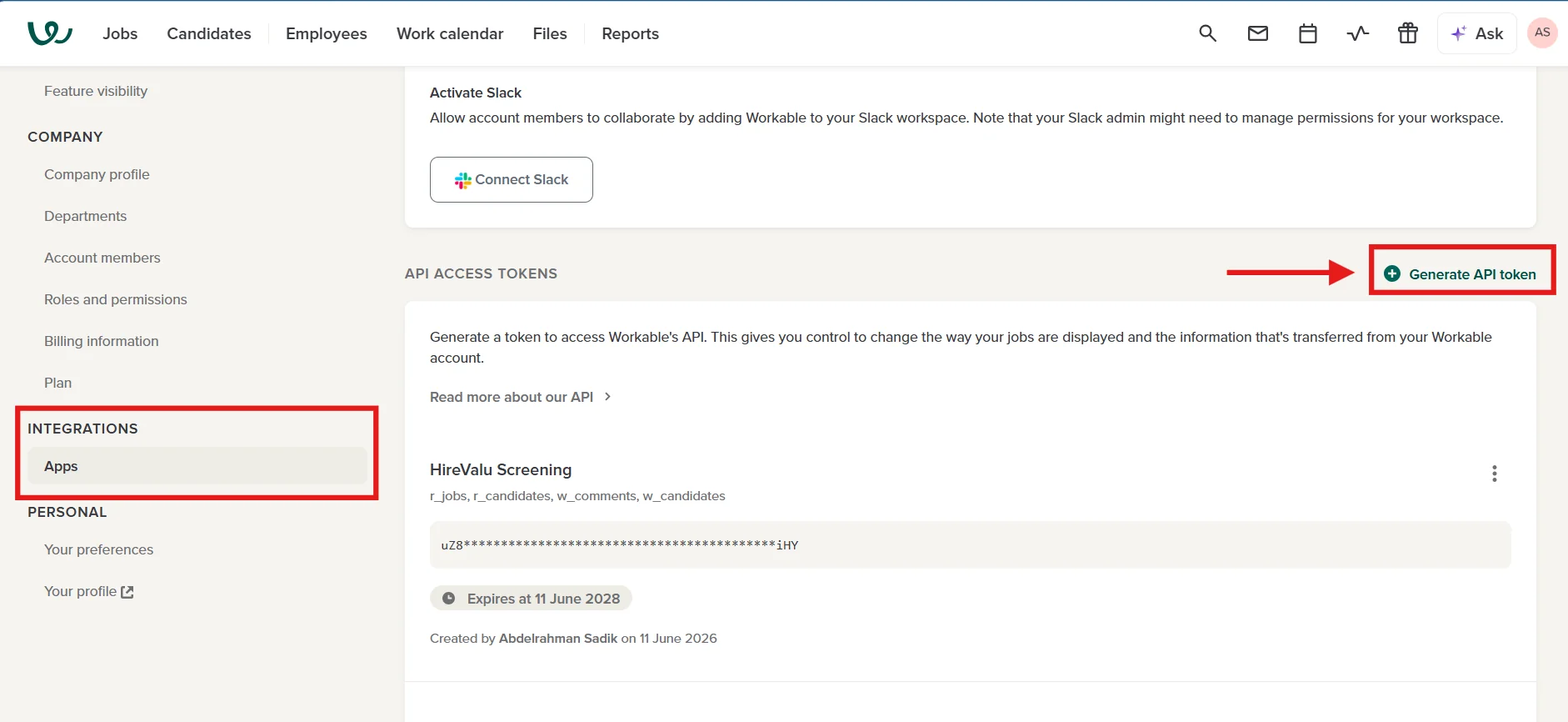
In the Generate API token dialog:
- Name — something your team will recognise later, such as Hirevalu.
- Expires in — pick how long the token stays valid. When it expires, the integration stops syncing until you generate a new key.
- API scopes — tick exactly these four:
| Scope | Why Hirevalu needs it |
|---|---|
r_jobs | List your jobs so you can link them to agents |
r_candidates | See which candidates enter the Hirevalu stage |
w_candidates | Update candidates in Workable with their interview progress |
w_comments | Post the interview evaluation back to the candidate |
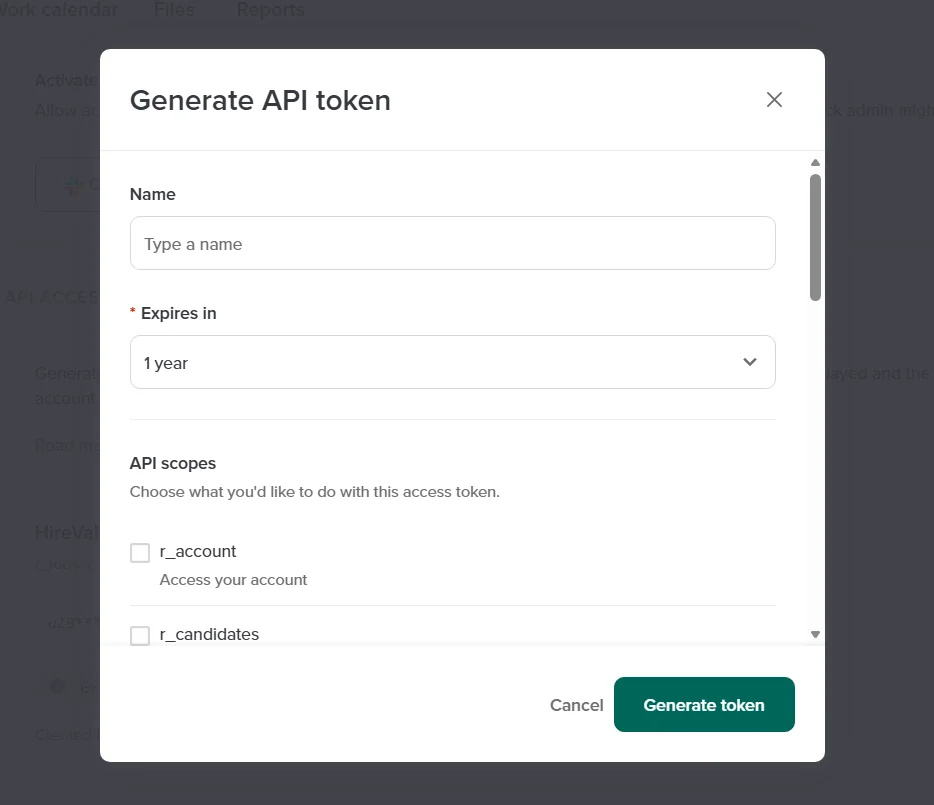
Click Generate token and copy the key straight away — Workable only shows it once.
Need a hand? See Workable’s API token docs.
4. Paste your key to go live
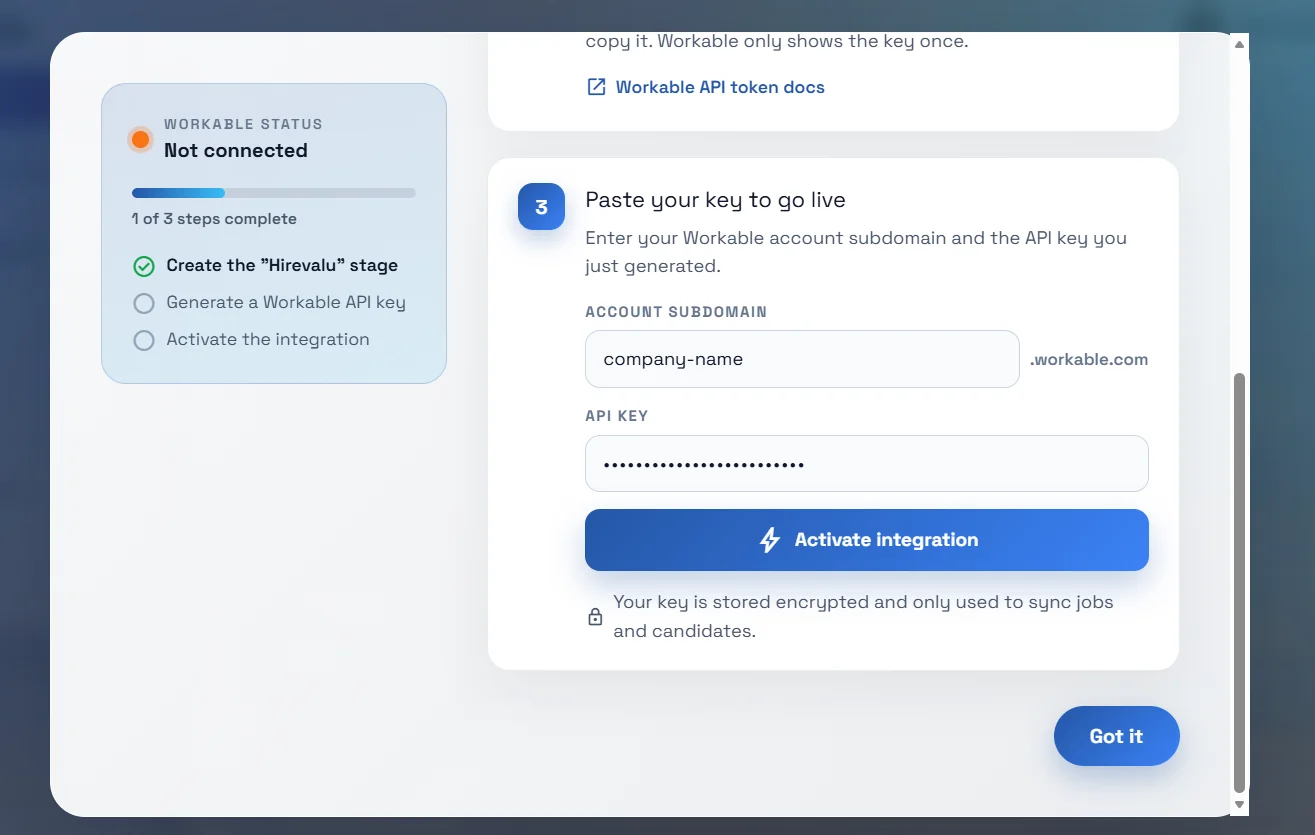
Back in the guide, fill in step 3:
- Account subdomain — just the subdomain;
.workable.comis added for you. - API key — the token you copied in the previous step.
Click Activate integration. Hirevalu verifies the key, and the guide confirms Integration is now live. Your key is stored encrypted and only used to sync jobs and candidates.
The Workable card now shows Connected, and its main button changes to Manage connection.
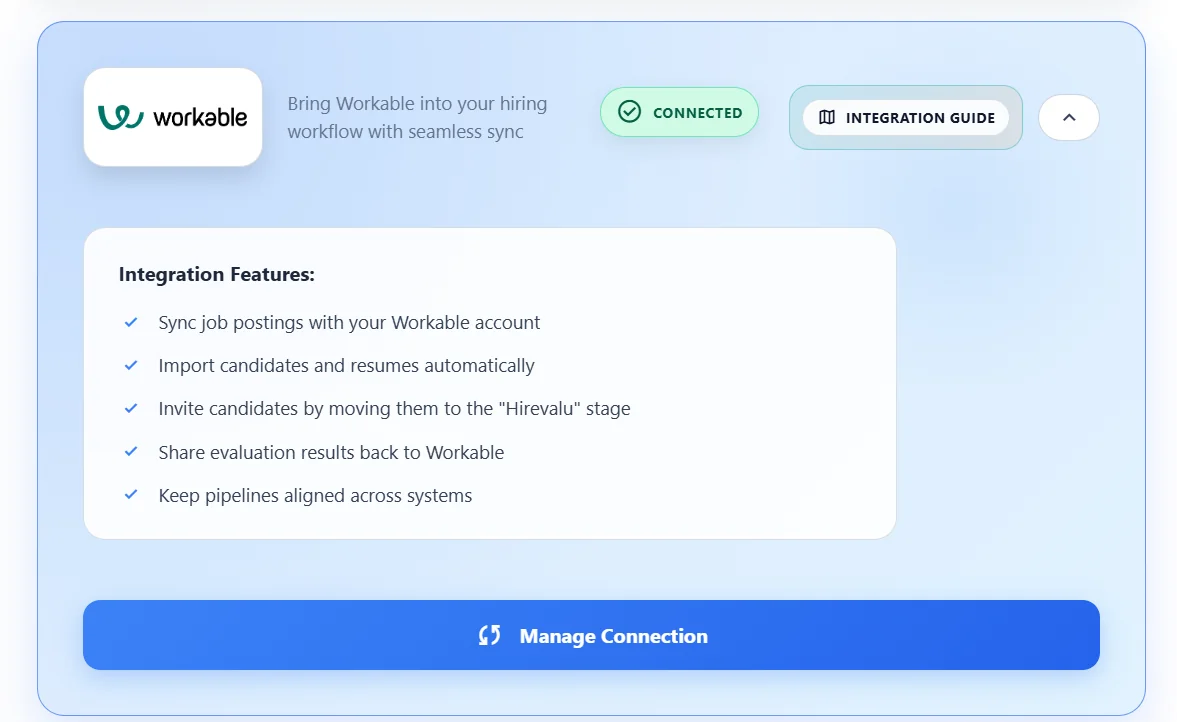
5. Link an agent to a Workable job
Connecting the account doesn’t sync anything on its own — you choose which agents are linked, one Workable job each.
Create your agent (see Create your first position) and open the ATS integration step. Select Workable, switch on Sync with Workable, then pick the job to link. Use Search Workable jobs to filter by name, or View to open the posting in Workable and double-check it’s the right one.
Once linked, the integration will:
- Invite automatically — candidates moved into the “Hirevalu” stage for that job are sent a screening invitation
- Sync results back — when the interview is complete, the evaluation is pushed to the candidate in Workable
Managing the connection
Click Manage connection on the Workable card to open Linked positions. It shows the connected account, the invite stage, and every Hirevalu agent linked to a Workable job — with how many candidates have synced, when it last synced, and whether each link is Syncing or Paused.
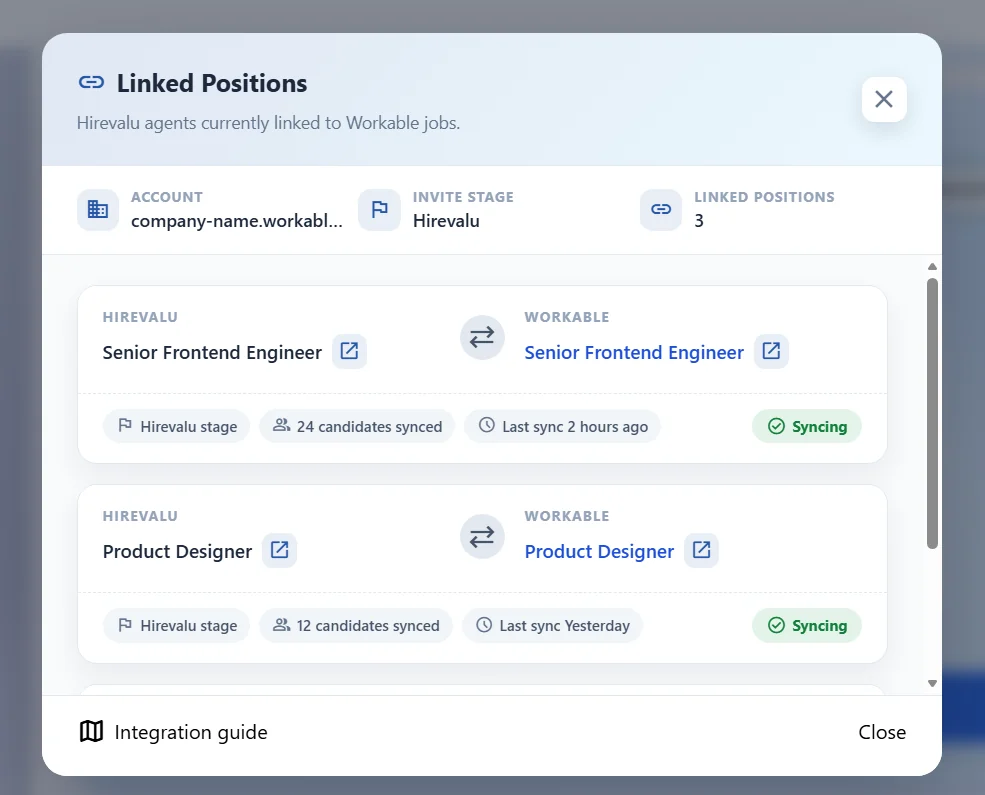
- Reopen the guide — use Integration guide at the bottom of the dialog.
- Disconnect — open the integration guide and click Disconnect Workable.
- Change an agent’s job — the Workable link is set when the agent is created and can’t be changed from Edit agent yet.
Troubleshooting
| Symptom | Likely cause |
|---|---|
| “That API key looks too short” | The key was only partly copied — generate a new token and paste the whole thing |
| No Workable jobs appear in the picker | Workable isn’t connected yet (step 4), or the account has no published jobs |
| Candidates aren’t being invited | The stage isn’t named exactly Hirevalu (step 2), or the agent isn’t linked to that job (step 5) |
| No Workable jobs appear in the picker | The token is missing r_jobs (step 3) — generate a new one with all four scopes |
| Results aren’t appearing in Workable | The token is missing w_comments or w_candidates (step 3), or the interview isn’t complete yet |
| Sync stopped working after a while | The API token expired — generate a new key and reconnect |
If a job still doesn’t appear after connecting, confirm it’s published in Workable and not still a draft.