
Integrations
Send WhatsApp invitations and reminders
Turn on WhatsApp messaging so candidates get an invitation and an expiry reminder on WhatsApp alongside their email, enabled per interview agent.
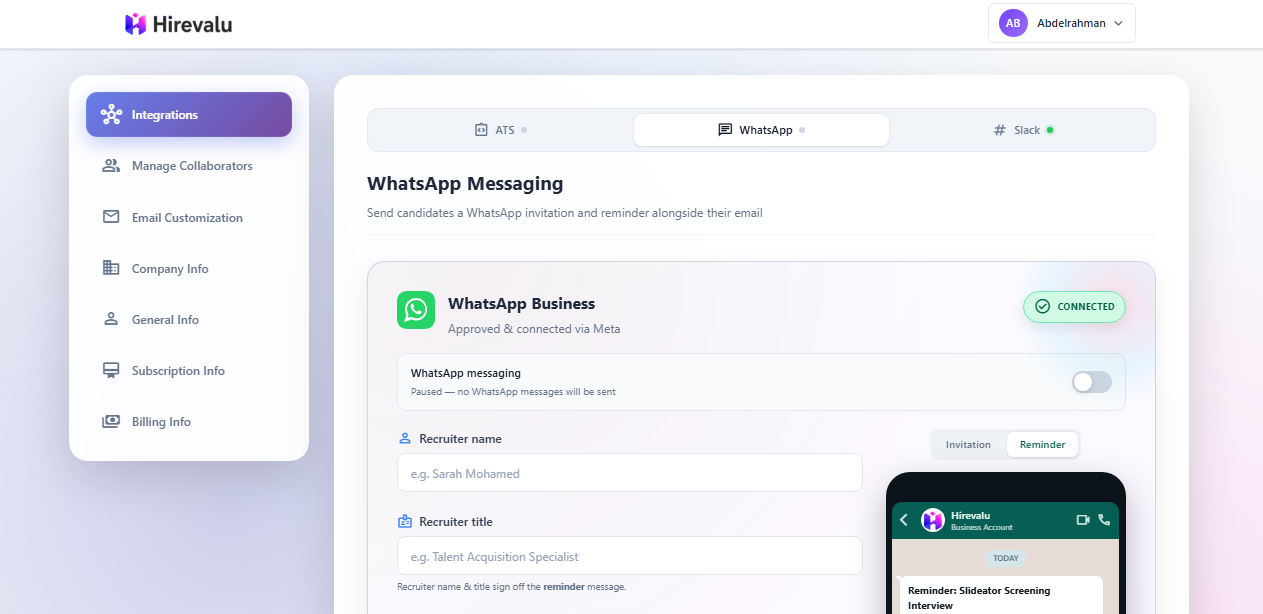
Candidates miss emails. WhatsApp messaging adds a second nudge on a channel people actually check — a short message when they are invited, and another as their invitation is about to expire.
WhatsApp complements the invitation email, it does not replace it. The email is still the only place the interview link lives; the WhatsApp message tells the candidate to go and open it. Nothing changes for candidates you have no phone number for — they simply get the email as before.
Before you start
- WhatsApp Business is already approved and connected for Hirevalu through Meta. There is no account to link and nothing to authorize — the integration is ready the moment you switch it on.
- Messages are sent from the Hirevalu Business Account.
- Both message templates are pre-approved by Meta. Their wording is fixed and cannot be edited; you control the details filled into them.
1. Turn on WhatsApp messaging
Go to Account settings → Integrations and open the WhatsApp tab. The Integrations section groups all three channels — ATS, WhatsApp and Slack — and each tab carries a status dot so you can see at a glance what is live.
Use the WhatsApp messaging toggle to switch the channel on for your whole account. This is the master switch: while it is off, no agent sends WhatsApp messages, however they are configured.
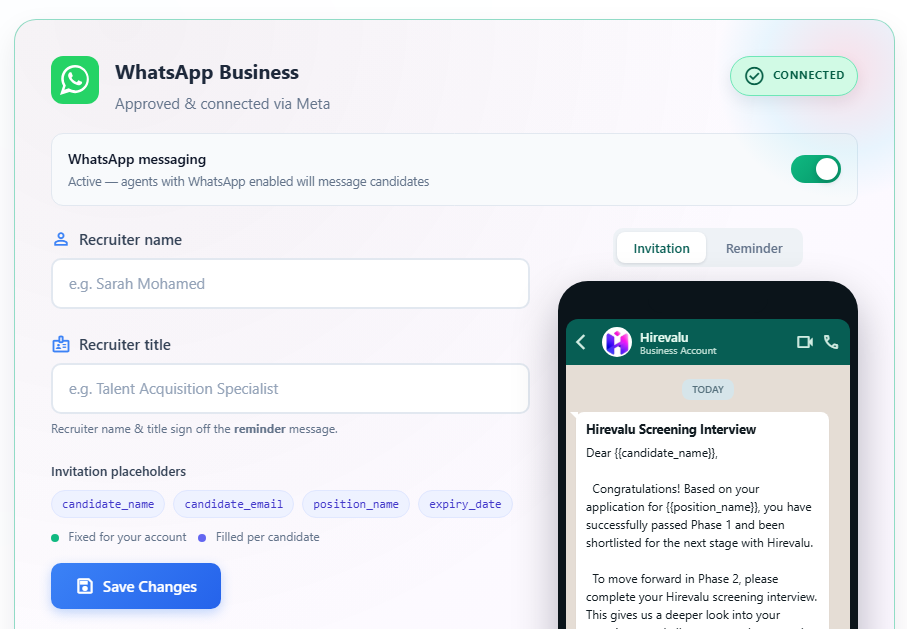
2. Set the recruiter name and title
The reminder message is signed off by a person rather than a company. Fill in Recruiter name and Recruiter title — for example Sarah Mohamed and Talent Acquisition Specialist — then Save changes.
These two fields are the only message content you set yourself. Everything else is filled in automatically:
| Detail | Where it comes from |
|---|---|
| Company name | Your Company Info in account settings |
| Team name | Your company name, followed by “Team” |
| Recruiter name and title | The two fields on this page |
| Candidate name and email | The candidate being invited |
| Position title | The agent the candidate is invited to |
| Expiry date | The invitation expiry set on that agent |
Leave the recruiter fields empty and the reminder falls back to your company name with a generic title — so it is worth filling them in.
3. Preview both templates
The phone preview on the right shows exactly what a candidate receives. Use the Invitation / Reminder switcher above it to flip between the two templates.
The preview updates live as you type, and any detail that is not known yet appears
as its placeholder name — {{candidate_name}}, {{position_name}} and so on — so
you can see precisely where each value lands. The chips under the form list the
placeholders used by whichever template you are previewing, with a colour key for
which are fixed for your account and which are filled per candidate.
4. Enable it on an agent
Turning WhatsApp on for the account does not start sending anything by itself — you choose which agents use it. That is deliberate: you might want WhatsApp for a high-volume role and email only for a senior one.
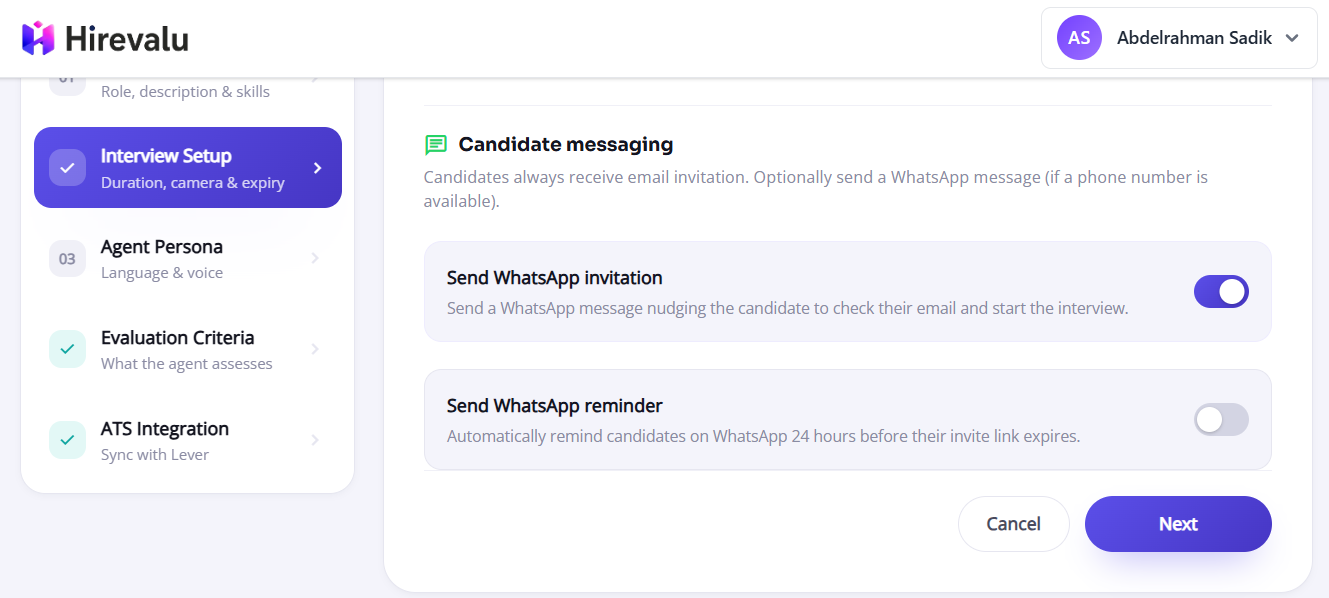
Open an agent (Create agent, or Edit on an existing one) and go to the Interview setup tab. Under Candidate messaging there are two independent switches:
- Send WhatsApp invitation — messages the candidate when they are invited.
- Send WhatsApp reminder — messages them again before their invitation expires.
Turn on either, both, or neither. Save the agent and it applies to every candidate invited from then on.
5. Add candidate phone numbers
A WhatsApp message can only reach a candidate whose phone number you provided. The number is always optional — leaving it out never blocks an invitation, it just means that candidate gets the email only.
- Inviting one candidate — fill in the optional Phone number field alongside their name and email.
- Bulk CSV upload — add an optional
candidate_phonecolumn. Rows without a number are still invited normally.
Always include the country code, for example +201001234567.
When the reminder is sent
Reminders follow the same schedule as Hirevalu’s reminder emails — in the last day before an invitation expires, once fewer than 24 hours remain and while there is still enough time left for the candidate to act.
A candidate is reminded only if:
- the agent has Send WhatsApp reminder switched on,
- they were invited at least 24 hours earlier,
- the agent’s invitation expiry is 2 days or longer,
- and they have not completed the interview yet.
Each candidate is reminded once per invitation, so nobody is messaged repeatedly. Hirevalu also paces sending to stay within WhatsApp’s limits; if a very large batch reaches those limits, the remaining reminders are picked up on the next run.
Pausing and managing
- Pause everything — switch the WhatsApp messaging toggle off in Account settings → Integrations → WhatsApp. Invitation emails carry on as normal.
- Pause one agent — turn off that agent’s Candidate messaging switches instead and leave the rest of your account untouched.
- Change the sign-off — update the recruiter name and title at any time; it applies to every reminder sent afterwards.
Troubleshooting
| Symptom | Likely cause |
|---|---|
| A candidate got the email but no WhatsApp message | No phone number was provided for them, or the number is missing its country code |
| Nobody on a position gets WhatsApp messages | The agent’s Send WhatsApp invitation switch is off, or the account-level WhatsApp messaging toggle is off |
| Invitations send, but no reminders | The agent has the invitation switch on but not the reminder one, or the invitation expiry is shorter than 2 days |
| The reminder is signed by the company, not a person | Recruiter name and Recruiter title are empty in account settings |
| The wording is not what we want | Template wording is fixed by Meta approval and cannot be edited in Hirevalu |
A failed WhatsApp message never affects the invitation itself — the candidate is still invited and still receives the email carrying their interview link.